Copilot Cowork
Nový způsob, jak pracovat — Cowork koordinuje úkoly, zapojuje agenty a pracuje s Vámi i Vaším týmem v reálném čase.
Osobní AI asistent
Cowork je váš osobní asistent v Microsoft 365 — pracuje s vašimi e-maily, dokumenty, kalendářem a Teams jako rozšíření vás samotných.
Naplánované akce
Úkoly v Coworku můžete naplánovat dopředu — pravidelně nebo jednorázově. Cowork je provede ve správný čas a doručí výsledek.
Office artefakty
Cowork vytváří kompletní dokumenty, prezentace a tabulky — od prvního nápadu po finální verzi.
Zdroje a dokumentace
Oficiální články
České překlady na blogu
Dokumentace
Videa
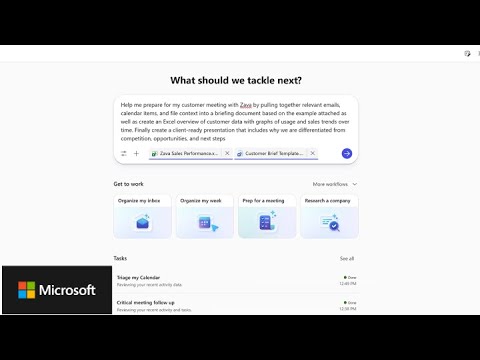
Vybrané videa o Copilot Cowork — od oficiálních ukázek Microsoftu po komunitní walkthrough.


Cowork Skills
Přehled dovedností, které Cowork ovládá. Každý skill je SKILL.md soubor — můžete si ho prohlédnout, zkopírovat nebo stáhnout.
💡 Nejspolehlivější je zavolat skill přímo jménem — např. „použij document-comparator…". Router pak skill spustí najisto, bez ohledu na to, jak požadavek formulujete. Níže uvedené fráze jsou další možnosti, které router rozpozná:
---
name: document-comparator
description: |
  Compares two versions of a Word/PDF document (contracts, policies, guidelines, NDAs, SOWs) and produces a detailed redline/track-changes report. Identifies additions, deletions, modifications, and structural changes between versions, with impact ratings for high-risk clauses (financial terms, liability, termination, SLAs).
  Use when the user asks to "compare documents", "diff these contracts", "what changed between v1 and v2", "review changes", "produce a redline", "track-changes report", "compare draft and final", or "show me what's different in the latest version".
  Do NOT use for: spreadsheet comparison (use xlsx skill), single-document summarization (answer directly), code/PR review (use review skill), or comparing meeting transcripts (use meeting-intel).
cowork:
  category: analysis
  icon: DocumentText
---

When asked to compare two documents:

1. **Identify the documents to compare:**
   - Ask the user for the two document versions (original and revised) if not provided
   - Accept documents from SharePoint, OneDrive, or local upload (check `input/` first)
   - If the user provides a folder, identify versions by filename patterns
     (e.g., "v1"/"v2", "original"/"revised", "draft"/"final", date suffixes)
   - If only one document is found, stop and ask for the second version — never proceed with a single file

2. **Read and parse both documents:**
   - Use the `pdf` skill for PDF inputs and the `docx` skill for Word inputs
   - Extract full text content with structure preserved (headings, sections, lists, tables)
   - Maintain section numbering and hierarchy for alignment
   - Note metadata differences (author, date, version number, headers/footers)

3. **Perform detailed comparison:**
   - Compare section by section, paragraph by paragraph
   - Categorize each difference as:
     - **Added** — new content not in original
     - **Removed** — content from original not in revised
     - **Modified** — same section/clause with changed wording or values
     - **Moved** — content relocated to a different section
     - **Structural** — renumbering, reorganization, new sections added
   - For modified content, identify the specific words/values that changed
     (e.g., "30 days → 60 days", "€45,000 → €52,000")

4. **Assess impact and risk (for contracts/policies):**
   - Flag high-impact changes:
     - Financial terms (amounts, payment terms, penalties)
     - Liability caps and exclusions
     - Term/duration changes
     - Termination conditions
     - New obligations or restrictions
     - SLA/performance metric changes
   - Rate each change: High Impact | Medium Impact | Low Impact

5. **Produce output as a Word document** (delegate generation to the `docx` skill) with this structure:

   **Page 1 — Executive Summary:**
   - Document names and versions compared
   - Date of comparison
   - Total number of changes by category (Added/Removed/Modified)
   - Top 5 most significant changes with impact rating
   - Overall assessment (minor revision / significant changes / major rewrite)

   **Page 2+ — Detailed Change Log:**
   - Table format with columns:
     | # | Section | Change Type | Original Text | Revised Text | Impact | Comment |
   - Group changes by section
   - Use color coding in the Impact column (red/yellow/green)

   **Final Section — Recommendations:**
   - Items requiring legal/management review
   - Potential risks introduced by the changes
   - Suggested clarifications or missing items

6. **Additionally produce a tracked-changes version** (if requested or if comparing contracts):
   - Take the ORIGINAL document as the base
   - Apply all changes as Word tracked changes (insertions and deletions)
   - Add comments on high-impact changes explaining the significance
   - This gives the user a "redline" document they can share with stakeholders

7. **Summary in conversation (confirmation gate):**
   - Before generating documents, present a brief summary in chat:
     - "Found X changes: Y additions, Z deletions, W modifications"
     - List the top 3 most impactful changes
   - Ask the user to confirm before producing the full report — long generation should not be wasted if the diff is wrong

8. **If asked to compare more than two versions:**
   - Create a version timeline showing the evolution of key terms
   - Highlight which changes were introduced in which version
   - Produce a single consolidated comparison report

9. **If asked to share results:**
   - Confirm recipients with the user before sending — comparison reports often contain confidential commercial terms
   - Email the comparison report and redline document to the confirmed recipients
   - Include a brief summary in the email body with the key findings

## When NOT to Use

- **Spreadsheets** (.xlsx, .csv) — use the `xlsx` skill, which understands cells, formulas, and sheets
- **Single-document tasks** (summarize, review, extract) — answer directly without invoking this skill
- **Code or PR diffs** — use the `review` skill or git tooling
- **Meeting transcripts** — use the `meeting-intel` skill for action-item / decision extraction
- **Email thread changes** — Outlook already shows reply history; no comparison needed

## Guardrails

- **Privacy**: Never echo full clauses containing personal data, salaries, or NDA-protected text in chat. Summarize and reference section numbers; put full text only in the generated Word file the user controls.
- **Confirmation before send**: Always confirm recipients explicitly before emailing reports — comparison output often contains commercially sensitive terms (pricing, liability caps, termination rights).
- **Missing-version fallback**: If only one version is found, stop and ask for the second — never produce a "comparison" against an empty document.
- **Format mismatch**: If the two files are different formats (e.g., one PDF scan, one Word), warn the user that OCR may introduce noise into the diff.
- **No legal advice**: Flag high-impact changes for human review. Do not assert whether a clause is enforceable or favorable — surface the change and let the user decide.
💡 Nejspolehlivější je zavolat skill přímo jménem — např. „použij sales-pipeline-analyst…". Router pak skill spustí najisto, bez ohledu na to, jak požadavek formulujete. Níže uvedené fráze jsou další možnosti, které router rozpozná:
---
name: sales-pipeline-analyst
description: Analyzes sales pipeline data from Excel or CRM exports to score deals, identify risks, forecast revenue, and generate QBR presentations. Use when asked about pipeline health, deal scoring, deal slippage, slipping deals, open opportunities, coverage ratio, win/loss analysis, quota attainment, forecast accuracy, sales forecasts, quarterly business reviews, QBR prep, or revenue projections. Produces Excel summaries and PowerPoint QBR decks. Do NOT use for marketing-funnel reports, customer-churn dashboards, single-deal email summaries, sales kickoff scheduling, or general sales-operations questions unrelated to pipeline analysis.
cowork:
  category: analysis
  icon: DataPie
---

When asked to analyze sales pipeline or prepare a QBR:

1. **Load and validate pipeline data:**
   - Look for Excel files in `input/` with pipeline/deals data (columns like: Deal Name, Account, Owner, Stage, Amount, Close Date, Probability, Product, Region, Next Steps)
   - Validate data completeness — flag deals missing close dates, amounts, or owners
   - Parse dates and calculate days-in-stage for each deal
   - **Fallback behavior when data is incomplete:**
     - If no input file is found: ask the user to upload the pipeline export (do NOT fabricate data)
     - If column names differ from expected: map them by best match and confirm the mapping with the user before proceeding
     - If quota is not provided: ask once for the period quota; if unknown, proceed without coverage-ratio analysis and note this gap in outputs
     - If historical data is missing: skip the QoQ trends section and note "Historical data unavailable" rather than inventing numbers
     - If more than 20% of rows have missing critical fields (close date, amount, owner): stop and surface the data-quality issues to the user before analysis

2. **Score and categorize deals:**
   - Apply deal health scoring (1-10) based on:
     - Days in current stage vs. average (stale = score penalty)
     - Close date proximity vs. stage progression
     - Deal size vs. historical win rates at that stage
     - Whether next steps are documented
   - Categorize: On Track | At Risk | Needs Attention
   - Flag deals with close dates in the past as "Slipped"

3. **Generate pipeline analytics:**
   - **Coverage ratio**: Weighted pipeline ÷ remaining quota (target: 3x)
   - **Stage distribution**: Deal count and value by stage (funnel shape)
   - **Velocity metrics**: Average days per stage, average deal cycle
   - **Win rate**: By rep, by product line, by deal size band
   - **Forecast categories**: Commit / Best Case / Upside / Pipeline
   - **Quarter-over-quarter trends** if historical data available

4. **Identify risks and actions:**
   - Deals slipping past close date without stage advancement
   - Pipeline concentration risk (>30% in single account or rep)
   - Deals in late stages with low probability scores
   - Reps below 2x coverage ratio
   - Product line gaps vs. quota distribution

5. **Produce outputs** (delegate file generation to the system skills):

   **Excel summary** — invoke the `xlsx` skill to build a workbook with tabs:
   - "Pipeline Overview" — all deals with health score and category
   - "Rep Summary" — quota, pipeline, coverage, weighted forecast per rep
   - "Stage Analysis" — deal count, value, avg days by stage
   - "Risk Register" — flagged deals with recommended actions
   - All calculated totals, percentages, and averages must come from formulas or pre-computed values — never type numbers by hand

   **PowerPoint QBR deck** — invoke the `pptx` skill to build slides:
   - Title slide with quarter, region, date
   - Executive summary (pipeline value, coverage, forecast vs. quota)
   - Pipeline waterfall (beginning → new → moved → won → lost → ending)
   - Stage funnel visualization (deal count + value)
   - Top 10 deals table with health indicators
   - Rep performance grid (quota, attainment, pipeline, coverage)
   - Risk summary with recommended actions
   - Next quarter outlook

6. **In conversation:**
   - Present key metrics via the `render-ui` skill as an adaptive card before generating files (KPIs: pipeline value, coverage ratio, weighted forecast, deal counts by category)
   - Highlight the 3 biggest risks and 3 biggest opportunities
   - Suggest specific actions (e.g., "Schedule deal review for 5 at-risk deals worth $2.3M")

7. **If asked to share — confirmation gate before any send:**
   - Before emailing, confirm with the user via `AskUserQuestion`:
     - The recipient list (exact email addresses)
     - The quarter/period covered
     - Whether to attach both Excel and PowerPoint or only one
   - Only send after explicit confirmation. Never auto-send pipeline data — it contains sensitive revenue figures.
   - Include the executive summary in the email body and attach the QBR deck and pipeline summary files from `output/`.

## When NOT to Use

- **Marketing-funnel or top-of-funnel reports** — different stage model, different metrics; use a marketing-analytics workflow instead
- **Customer-churn or retention dashboards** — post-sale lifecycle, not pre-sale pipeline
- **Single-deal email summaries** ("summarize my emails about the Acme deal") — use email search and summarization tools instead
- **Sales kickoff or team-meeting scheduling** — use the `schedule-meeting` skill
- **Compensation, quota-setting, or rep performance reviews** — out of scope; this skill reports pipeline metrics, not individual performance
- **Generic spreadsheet or deck requests** without pipeline content — use the `xlsx` or `pptx` skills directly
💡 Nejspolehlivější je zavolat skill přímo jménem — např. „použij meeting-notes-processor…". Router pak skill spustí najisto, bez ohledu na to, jak požadavek formulujete. Níže uvedené fráze jsou další možnosti, které router rozpozná:
---
name: meeting-notes-processor
description: |
  Processes a Teams meeting transcript into structured meeting notes, saves them as a Word
  document, and sends the notes to all meeting attendees via email. Use when asked to
  "process meeting transcript", "create meeting notes from transcript", "summarize the meeting
  and send notes", "write up meeting notes", "send meeting summary to attendees",
  "process today's standup", or "create and distribute meeting minutes".
  Do NOT use for meeting preparation (use meeting-prep-assistant).
cowork:
  category: productivity
  icon: DocumentText
---

When asked to process a meeting transcript and distribute notes:

## Step 1: Identify the Meeting

- Find the meeting on the user's calendar (by name, time, or attendee hint)
- Locate the Teams meeting transcript (available in the meeting chat or OneDrive/SharePoint)
- Extract: title, date/time, duration, attendees list (from calendar invite), organizer
- If multiple transcripts exist (e.g. recurring series), confirm which one

## Step 2: Process the Transcript

Read the full transcript and extract:

- **Key decisions** — any conclusions, approvals, or agreements reached
- **Action items** — who committed to do what, by when (look for phrases like "I'll do", "let's", "by Friday", "action on [name]")
- **Discussion topics** — main subjects covered, with brief summary of each
- **Open questions** — unresolved items, parking lot topics, items deferred to next meeting
- **Participants who spoke** — note who contributed vs. who was silent (useful for follow-up)

## Step 3: Create Word Document

Save a Word document with this structure:

---

**[Meeting Title] — Meeting Notes**

**Date:** [date and time]
**Duration:** [length]
**Attendees:** [list of names]
**Organizer:** [name]
**Notes prepared by:** Cowork

---

### Summary
[2-3 sentence executive summary of what was accomplished]

### Key Decisions
1. [Decision] — agreed by [who]
2. ...

### Action Items
| # | Action | Owner | Due Date | Status |
|---|--------|-------|----------|--------|
| 1 | [task] | [name] | [date or "TBD"] | Open |
| 2 | ... | ... | ... | Open |

### Discussion Notes
**[Topic 1 heading]**
- [key points discussed]
- [outcome or conclusion]

**[Topic 2 heading]**
- [key points discussed]
- [outcome or conclusion]

### Open Questions / Parking Lot
- [item deferred or unresolved]

### Next Steps
- Next meeting: [date if mentioned, or "to be scheduled"]
- Follow-up needed from: [names]

---

**File naming:** `Meeting Notes - [Meeting Title] - [YYYY-MM-DD].docx`

**Save location:** Same SharePoint/OneDrive folder where the transcript is stored. If not available, save to the user's OneDrive Documents folder.

## Step 4: Send to Attendees

Compose and send an email to **all meeting attendees** (from the calendar invite):

- **To:** all attendees (including organizer)
- **Subject:** `Meeting Notes: [Meeting Title] — [Date]`
- **Body:**

  > Hi all,
  >
  > Please find attached the meeting notes from [Meeting Title] on [date].
  >
  > **Key outcomes:**
  > - [1-2 bullet summary of decisions]
  >
  > **Action items assigned:**
  > - [Name]: [task] (due [date])
  > - [Name]: [task] (due [date])
  >
  > Full notes are attached and also saved in [location/link].
  >
  > Please reply if anything needs correction.
  >
  > Best regards

- **Attachment:** the Word document created in Step 3

## Step 5: Confirm Completion

Report to the user:
- Transcript processed ([X] minutes of content)
- [Y] action items identified
- Word document saved: [filename + location]
- Email sent to [Z] attendees

Ask: "Would you like me to create calendar tasks for the action items, or adjust anything in the notes?"

## Rules

- **Never fabricate content.** Only include information actually present in the transcript.
- If the transcript is unclear (crosstalk, inaudible), note it: "[unclear]" or "[inaudible segment]".
- If no clear action items were stated, note: "No explicit action items identified — consider following up with attendees."
- Keep notes concise — the full transcript is the record of truth; notes are the actionable summary.
- Respect the original language — if the meeting was in Czech, write notes in Czech. If English, write in English. If mixed, default to the dominant language or ask the user.

## When NOT to Use

- Meeting preparation or pre-meeting briefs → use `meeting-intel` / meeting-prep flows
- Ad-hoc transcript summaries with no distribution → just summarize inline, don't run this full workflow
- Calendar scheduling or rescheduling → use `schedule-meeting`
- Daily activity overviews across many meetings → use `daily-briefing`